Samples
A Sample is the prototype you make from a Tech Pack to prove the style works before you commit to production. It's a physical garment, but inside GarmentFlow it's also a document — one that tracks who's making the sample, what they're matching to, how it measures up against the spec, and what the brand or design lead thinks of it.
A Sample requires a Tech Pack — regardless of the Tech Pack's current state. You can create a Sample three ways: from the Tech Pack's Create Sample action, directly from the Sample list, or from the Design App on a phone or tablet.
Getting there
Hit Cmd + K on Mac or Ctrl + K on Windows, type sample, and pick Sample List. Or open the Tech Pack and use Create Sample from the actions menu.
The Design workspace surfaces three useful quick lists on the Sample card: Samples Awaiting Response, Approved Samples, and Rejected Samples. Most days you'll live in those rather than the full list.
Lifecycle
A Sample moves through a fixed set of states. Unlike the Tech Pack workflow, the Sample's lifecycle is a simple status field:
- Requested — someone has asked for this sample to be made. The sample room hasn't started yet.
- In Production — the sample is on the floor. Cutting, stitching, washing, laser, embroidery — any production operation puts it here.
- On Hold — paused for any reason (waiting on fabric, brand input, internal review).
- Rejected [internally] — the sample didn't pass internal review and never went to the brand. Make another one.
- Sent — the physical sample has been shipped or handed to the brand for review.
- Rejected — the brand or external reviewer rejected it.
- Approved — the brand approved it. Link it back to the Tech Pack's Design tab; it's now the production reference.
The two "Rejected" states are deliberately different. Rejected [internally] means your own sample room or design lead caught a problem before the brand ever saw it — a cheaper iteration. Rejected means the brand saw it and said no.
Apply Changes
Alongside the status there's an Apply Changes checkbox. Tick it when the sample needs revisions — whether from internal review or brand feedback. Combined with the feedback captured in the Results tab, it drives what happens next: a Pattern Modification Request gets created automatically for every feedback item that's pattern-related, so the pattern team has a clear, structured list of fixes rather than a long email.
Three tabs
The Sample form is organized around the three stages of getting a sample made:
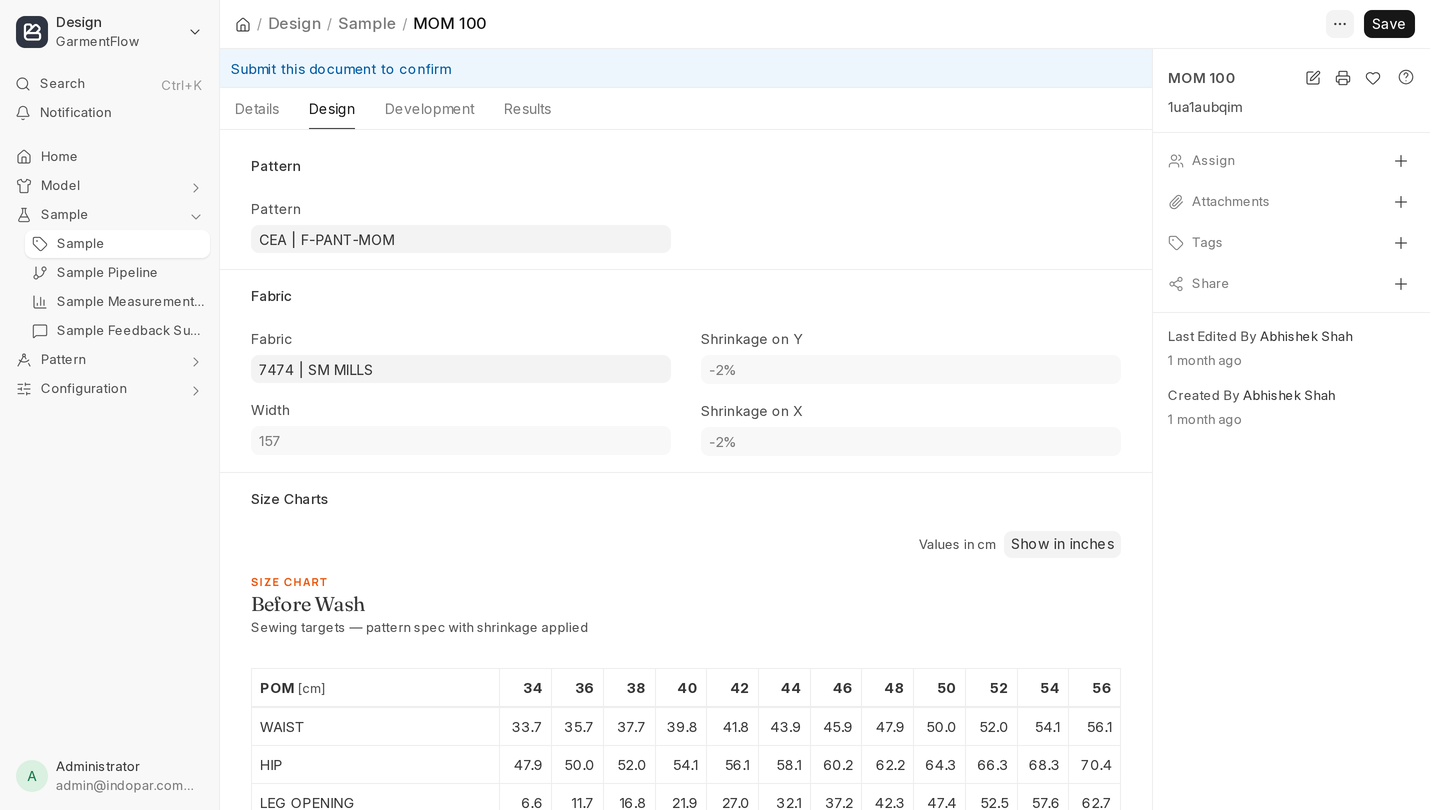
Design tab. What you're making. Pattern, Fabric, and the Size Charts the sample should be cut to. Most of this is inherited from the Tech Pack but can be overridden if this sample is exploring a variant of the spec. Base Size sits at the top — change it and every measurement target on the Results tab updates accordingly.
Development tab. How you're making it. Stitching details, thread, weight — anything the sample room needs to actually produce the garment.
Results tab. What came out. Measurements against the pattern, feedback from reviewers, deviations from spec. The measurement table is pre-populated from the Pattern's POM table, and the before-wash targets are calculated automatically from the fabric's Shrinkage on X and Shrinkage on Y — so the sample room can measure pre-wash and post-wash against numbers GarmentFlow already knows.
See Measurements and feedback for how the Results tab works end-to-end.
Where the Design App helps
The Design App is where the loop tightens on real samples. From a phone or tablet on the sample room floor:
- Create samples without leaving the floor.
- Take photos of issues during sample development — fit problems, stitching defects, color mismatches — and they attach directly to the Sample record. Anyone reviewing later sees the visual evidence next to the feedback note.
- Measure pre- and post-wash via voice commands — call out the POM and the reading, the app fills the row. Hands-free measuring while you're holding the tape.
- All feedback in one place. Internal sampling team, commercial team, brand, customer — each round's comments land on the same Sample, time-stamped and attributed. No chasing emails, no losing the WhatsApp thread.
What happens when you decide
When a sample is marked Approved or Rejected with Apply Changes ticked, GarmentFlow rolls up every pattern-related piece of feedback into a Pattern Modification Request against the linked Pattern. The pattern team picks it up; the next sample inherits the fix.
Trim, fabric, or service changes from feedback should flow back to the Tech Pack's Logistics tab the same way — once, on the master, not over and over on each Sample.
A working example
A brand asks for a new fleece hoodie in three colors. You create the Tech Pack, then from the Tech Pack hit Create Sample. The Sample is born in Requested, linked to the Tech Pack, with Pattern and Fabric copied across.
The sample room moves it to In Production, cuts and stitches the garment. The designer notices the hood looks shallow, opens the Sample on the Design App, takes a photo of the issue, and adds a feedback note — all from the floor. The room marks the sample Sent and ships it to the brand.
The brand tries it on, agrees the hood is short, and marks it Rejected with Apply Changes ticked. GarmentFlow raises a Pattern Modification Request with the hood-depth feedback attached. The pattern team adjusts the block, a new Sample comes from the Tech Pack, and this round comes back Approved. You set this Sample as the approved reference on the Tech Pack's Design tab. Production now has a target to match.
What to do next
- Measurements and feedback — how the Results tab handles measurements, deviations, and the PMR rollup.
- Design App — how to install it on a phone or tablet for floor use.